When the Office Goes Quiet
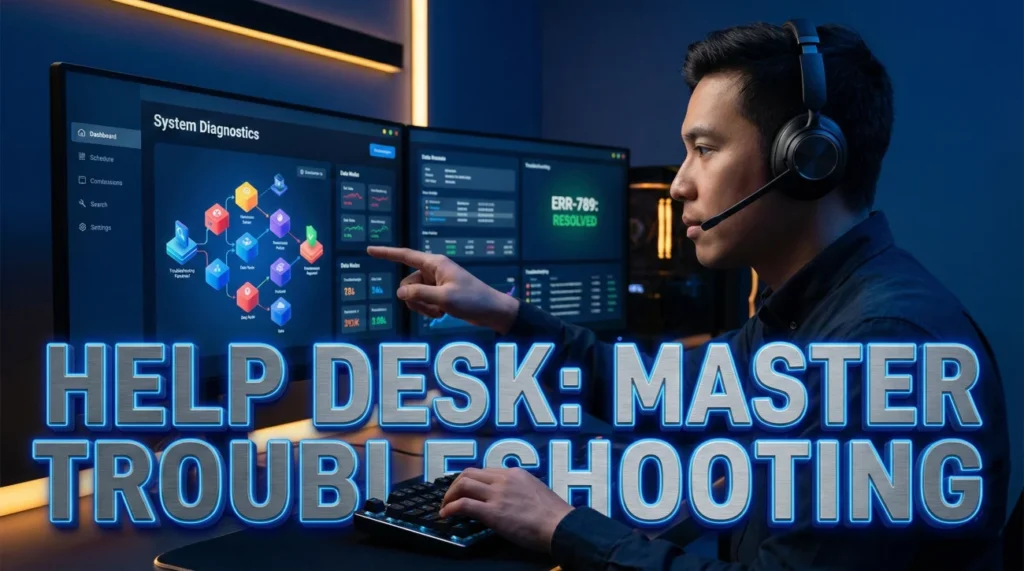
At some point, every workplace hits the same moment: the Wi-Fi drops, Outlook will not sync, a laptop refuses to boot, and someone says, “I cannot work.” That is the moment a Help Desk Analyst steps in. Help desk analyst interview questions are built to find the person who can restore systems and confidence at the same time.
Interviewers are not only checking your knowledge of Windows, networking basics, and identity tools like Active Directory. They are testing how you think under pressure: how you narrow a vague symptom into a specific cause, how you communicate without jargon, and how you document so the next analyst can continue the story without guessing.
Use this guide to practice answers that sound like real support work: quick triage, clear explanations, and steady customer handling. If you can explain your method and your tone, you will stand out as someone who keeps the business moving.
Troubleshooting Methodology & Soft Skills
Q: Walk me through your troubleshooting process for a generic “My computer is slow” ticket.
Why they ask: They want to see your logical flow. “Slow” is vague; you need to narrow it down.
Sample Answer: I start by gathering information. I ask, “Is it slow on startup, when opening a specific app, or accessing the internet?” This isolates the issue to hardware, software, or network.
Next, I check the “low-hanging fruit” – uptime (has the user restarted lately?) and Task Manager for high CPU/RAM usage. If it’s a specific app, I check for updates. If it’s the network, I run a speed test. I follow the CompTIA troubleshooting steps: Identify, Theory, Test, Plan, Verify, Document.
Q: How do you explain a complex technical issue to a non-technical user?
Why they ask: Communication is key. You can’t use jargon with the accounting team.
Sample Answer: I use analogies. If a hard drive is full, I compare it to a filing cabinet that is stuffed so tight you can’t slide any new papers in. If the RAM is low, I compare it to a small desk where you can only work on one paper at a time.
I avoid acronyms like “DNS” or “DHCP” unless I explain them. I focus on the solution (“I’m clearing some space so it runs faster”) rather than the technical cause, unless they ask for details.
Q: How do you prioritize multiple urgent tickets?
Why they ask: Triage skills. Not everything is a P1 (Priority 1).
Sample Answer: I prioritize based on “Business Impact” and “User Count.” A server outage affecting the entire sales floor is a P1. A single user who can’t print to one specific printer (but has alternatives) is a P3.
I also look at VIP status if company policy dictates, but generally, widespread outages come first. I communicate with the users waiting: “I am aware of your ticket #123, but I am currently resolving a site-wide outage. I will get to you as soon as that is stable.”
Q: Describe a time you dealt with a user who was angry about a tech failure.
Why they ask: Empathy check. Tech fails, and people get emotional.
Sample Answer: I had a user furious because her laptop crashed before she saved a presentation. I didn’t get defensive or blame her for not saving.
I said, “I can hear how stressful this is, and I am going to do everything I can to try and recover that file.” I validated her panic. While I worked, I explained the auto-save feature in Office so she felt there was hope. Even though we only recovered a partial draft, she appreciated the effort and the empathy.
Technical Knowledge: OS, Network & Identity
Q: What is Active Directory (AD) and how do you use it?
Active Directory is the database that manages user identities and permissions within a Windows domain. As a Help Desk Analyst, I use it daily for “Identity and Access Management” (IAM).
My common tasks include resetting passwords, unlocking accounts (after too many failed attempts), adding users to Security Groups (to give folder access), and disabling accounts for terminated employees. It is the gatekeeper of the network.
Q: Explain the difference between Ping and Traceroute.
Ping tests connectivity between two devices. It’s like knocking on a door to see if anyone answers. It tells me if a server is online and the latency (speed).
Traceroute (tracert) maps the path the data takes to get there. It shows every “hop” (router) along the way. If a ping fails, I use traceroute to see where the connection broke – is it our internal router, the ISP, or the destination server?
Q: A user can’t connect to the internet. What steps do you take?
I start with the physical layer: Is the cable plugged in? Is Wi-Fi on? Then I check the IP address using `ipconfig`. If they have a “169.254…” address (APIPA), they aren’t reaching the DHCP server.
I try the command `ipconfig /release` and `/renew`. If that fails, I check if other users are down (switch issue). If they have an IP but no web access, I try to ping Google (8.8.8.8). If ping works but websites don’t load, it’s a DNS issue.
Q: What is a VPN and why do we use it?
A VPN (Virtual Private Network) creates a secure, encrypted tunnel over a public network (like home Wi-Fi) into the corporate network. We use it to allow remote employees to access internal resources (file shares, intranet) safely.
Common troubleshooting involves checking if their internet is stable, if their 2FA (Two-Factor Authentication) token is valid, or if the VPN client needs an update.
Q: How do you troubleshoot a “Blue Screen of Death” (BSOD)?
I ask the user what they were doing when it happened (installing a driver? opening a specific app?). I look for the “Stop Code” on the blue screen (e.g., CRITICAL_PROCESS_DIED).
I check the Event Viewer logs for critical errors leading up to the crash. I ask if they installed new hardware recently. I run hardware diagnostics (like Dell SupportAssist or Windows Memory Diagnostic) to rule out bad RAM or a failing hard drive.
Q: What is DHCP and what happens if it fails?
DHCP (Dynamic Host Configuration Protocol) automatically assigns IP addresses to devices on the network. Without it, devices cannot communicate.
If it fails, users will not get an IP address (getting a 169.x.x.x APIPA address instead) and will have no network connectivity. I would check if the DHCP server service is running or if the “Scope” (pool of addresses) is full.
Situational Scenarios: Remote & VIP Support
A VIP (e.g., CEO) calls with a problem, but you are already on a call with another user.
I do not hang up on the current user. I assess the urgency. If I have a “live chat” or “team channel,” I might ping a colleague: “The CEO is in the queue, can someone grab it?”
If I am the only one, I ask the current user for a brief hold: “I apologize, I have a critical alert incoming.” I answer the VIP, acknowledge them, and assess if it’s a quick fix. If not, I create a ticket and promise a callback in 5 minutes, or I escalate the VIP to my manager immediately. VIPs require “White Glove” service, but I still treat the current user with respect.
You need to troubleshoot a remote user’s PC, but they have no internet.
This is tricky because I can’t use remote desktop tools (TeamViewer/AnyDesk). I have to do “Blind Troubleshooting” over the phone.
I walk them through checking the physical connections first. I ask them to describe the lights on their router. I might guide them to use their smartphone as a “Hotspot” to get the laptop online temporarily so I can remote in and fix the driver issue. Patience and clear, non-visual instructions are critical here.
A user claims they didn’t receive an important email.
First, I ask them to check the “Junk/Spam” folder and the “Deleted Items.” It sounds basic, but it solves 50% of cases.
If it’s not there, I verify the sender’s address – did they misspell it? Then, I check the “Message Trace” logs in the Exchange/Office 365 admin center. This tells me if the email hit our server and if it was delivered, quarantined by the spam filter, or blocked. I use data to find the missing mail.
Process, Documentation & Security
Q: Why is ticket documentation important?
Why they ask: “If it isn’t documented, it didn’t happen.” Documentation allows for knowledge sharing.
Sample Answer: Documentation is vital for three reasons. First, it creates a history; if the user calls back, the next analyst knows what I already tried. Second, it contributes to the Knowledge Base (KB) so we can solve repeat issues faster.
Third, it provides data for root cause analysis. If we see 50 tickets about “Printer X” in one week, we know the printer needs replacement, not just a restart. I write notes that are clear enough for anyone to read and understand.
Q: How do you handle a “Phishing” report from a user?
Why they ask: Security awareness is part of the Help Desk role now.
Sample Answer: I take it seriously. I instruct the user immediately: “Do not click any links or open attachments.” I ask them to forward the email to our security team (or use the “Report Phishing” button).
I then check if they did click anything. If they did, I isolate their machine from the network immediately to prevent malware spread and trigger a password reset. I treat it as a potential security breach until proven otherwise.
Q: How do you manage your time when you have a queue of tickets?
Why they ask: Efficiency and SLA awareness.
Sample Answer: I work by SLA (Service Level Agreement). I sort my queue by “Time to Breach.” I tackle the tickets that are about to expire first.
I also group similar tickets. If I have three password resets, I do them in a batch. If I have a ticket requiring a long software install, I start that process and work on a simpler ticket while the progress bar loads. Multitasking efficiently keeps the queue down.
IT Help Desk Competency Quiz
Take the 20-Question Challenge
1. “SLA” stands for:
- System Local Admin
- Service Level Agreement
- Server Log Access
- Simple Login App
2. The command to check IP configuration in Windows is:
- ifconfig
- ipconfig
- show ip
- netstat
3. An IP address starting with 169.254 means:
- The internet is fast
- The device failed to reach the DHCP server (APIPA)
- It is a static IP
- It is a printer
4. “DNS” translates:
- Files to folders
- Domain Names (google.com) to IP addresses
- English to French
- Wifi to Ethernet
5. “Active Directory” is mainly used for:
- Browsing the web
- Managing user identities and access rights
- Creating spreadsheets
- Monitoring printer ink
6. A “Ticket” is:
- A fine
- A documented record of an incident or request
- A password
- A hardware part
7. “Ping” is used to:
- Play a game
- Test connectivity to a host
- Open a port
- Delete a file
8. “Remote Desktop” tools include:
- Photoshop
- TeamViewer, AnyDesk, RDP
- Word, Excel
- Spotify
9. “2FA” or “MFA” adds security by:
- Making passwords shorter
- Requiring a second form of verification (like a code on phone)
- Removing passwords
- Using only email
10. If a user deletes a file on a shared drive, you should check:
- The Recycle Bin on the server (Shadow Copies/Backups)
- The Recycle Bin on the server (Shadow Copies/Backups)
- Their browser history
- The printer logs
11. “BSOD” stands for:
- Black Screen of Death
- Blue Screen of Death (System Crash)
- Big System On Disk
- Basic System Operating Device
12. A “VPN” provides:
- Faster internet
- A secure, encrypted tunnel to the corporate network
- Free movies
- Virus protection
13. The “KB” in Help Desk refers to:
- Keyboard
- Knowledge Base
- Kilobyte
- Key Badge
14. “Phishing” is:
- A sport
- A fraudulent attempt to get sensitive info via email/link
- Fixing a computer
- Cleaning a mouse
15. “Safe Mode” starts Windows with:
- Extra viruses
- Minimal drivers and services for troubleshooting
- Maximum graphics
- No password
16. “Escalation” means:
- Giving up
- Passing a ticket to a higher tier (Tier 2/3) for advanced resolution
- Deleting the ticket
- Yelling
17. A “Re-image” involves:
- Taking a photo
- Wiping the computer and reinstalling the OS and standard apps
- Cleaning the screen
- Changing the background
18. To access the “Task Manager,” you press:
- Alt + F4
- Ctrl + Shift + Esc (or Ctrl + Alt + Del)
- Windows + L
- F5
19. “Uptime” refers to:
- Time spent standing
- How long a system has been running without a restart
- Time spent on the phone
- Internet speed
20. The first rule of troubleshooting is usually:
- Buy a new one
- Identify the problem (Gather info)
- Panic
- Re-image immediately
❓ FAQ
🧭 How technical should my answers be in a Tier 1 interview?
Go one level deeper than the question, then stop. Show you understand basics like DNS, DHCP, and authentication, but explain them in plain language. Interviewers care more about your troubleshooting flow than your ability to recite definitions.
📝 What is “good documentation” in a ticket?
Write the symptom, what you checked, what you changed, and the result. Include any error codes, device names, and timestamps. A strong ticket lets another analyst pick up the case with zero backtracking.
🔐 How do I answer questions about security without sounding paranoid?
Focus on habits: verify identity before resets, follow least-privilege rules, and escalate suspicious activity quickly. You can be calm and practical while still showing you take phishing and access control seriously.
🧩 What if I have never used ServiceNow or Jira?
Be honest, then explain how you would learn: using templates, consistent categories, and clear notes. Ticketing tools differ, but the core skill is tracking work, following SLAs, and communicating progress.
⚡ What is a strong way to talk about the OSI model?
Use it as a mental checklist, not a lecture. Start physical and network basics (cables, Wi-Fi, IP), then move up to DNS, applications, and permissions. That shows you can troubleshoot logically instead of jumping to random fixes.
Final Thoughts
In a hiring process, it is easy to sound like a list of tools. The better move is to sound like a reliable workflow. When you answer help desk analyst interview questions, show how you gather facts, test one theory at a time, and communicate progress so the user is not left guessing.
If you can combine clear troubleshooting with calm service, you signal you are ready for real tickets, real outages, and real people who need their day back. That is what separates “good with computers” from “ready for the desk.”
⚠️ Disclaimer: The interview strategies, sample answers, and negotiation tips provided in this guide are for educational purposes only. Hiring decisions are subjective and vary by company and industry. While these strategies are based on professional HR standards, they do not guarantee a specific job offer or result.