What System Administrator Interviews Test
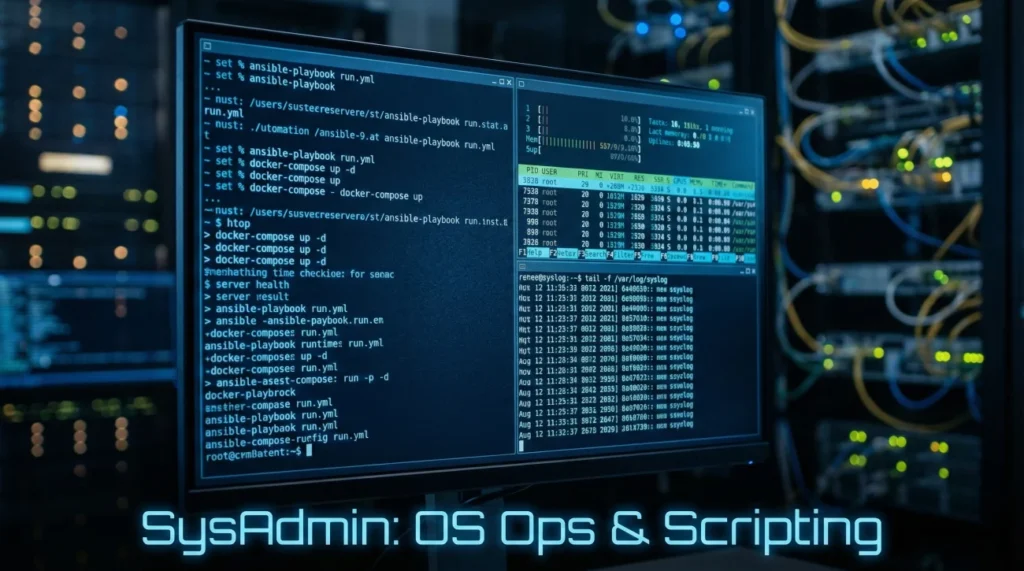
System administrator interviews test operational expertise through sysadmin scripting interview questions requiring automation of repetitive tasks, user management questions testing Active Directory and permission configuration, and Bash PowerShell interview scenarios demonstrating practical scripting abilities. Companies probe how you troubleshoot server issues under pressure, automate system maintenance reducing manual workload, and manage multi-platform environments balancing Windows and Linux operations. For comprehensive IT interview preparation, check our complete technical interview guide.
These system administrator interview questions cover server configuration and monitoring ensuring uptime and performance, backup and disaster recovery strategies protecting critical data, security patch management maintaining system hardening, and server operations interview procedures handling incidents. Modern sysadmin roles emphasize infrastructure as code managing configurations through version control, automation using scripting languages eliminating toil, and proactive monitoring preventing problems before users report them.
Scripting & Automation
Q: What scripting languages do you use for system administration and why?
PowerShell for Windows environments automating Active Directory management, user provisioning, and system updates through cmdlets providing consistent syntax. Bash for Linux systems handling file operations, log parsing, and service management leveraging Unix tools like grep, awk, and sed. Python for cross-platform tasks requiring complex logic, API interactions, or data processing beyond shell capabilities. Choose language matching environment: PowerShell integrates with Windows ecosystem, Bash excels at text processing on Linux, Python handles sophisticated automation spanning platforms. Effective sysadmins master multiple languages applying appropriate tool to each task.
Q: Describe a task you automated and the impact it had.
Automated user onboarding process previously requiring 30 minutes manual work per new employee. PowerShell script creates Active Directory account, assigns group memberships based on department, provisions email mailbox, sets file share permissions, and sends welcome email with credentials. Script reduced provisioning time to 2 minutes and eliminated errors from manual permission assignment. Added error handling logging failures for review. Impact included faster employee onboarding, consistent permission application, and freeing team from repetitive work to focus on infrastructure projects. Automation saved 10+ hours weekly across team.
Q: How do you handle errors in scripts?
Implement try-catch blocks wrapping risky operations allowing graceful failure recovery. PowerShell uses try { } catch { } handling terminating errors. Bash checks exit codes with if [ $? -ne 0 ] after commands. Log errors to files including timestamp, command attempted, and error message aiding troubleshooting. Validate inputs before processing preventing invalid data causing failures. Use email notifications alerting administrators when critical scripts fail. Test scripts in non-production environments catching edge cases. Balance between failing fast showing problems immediately versus trying fallback approaches recovering automatically.
Q: Explain PowerShell pipelines versus traditional command chaining.
PowerShell pipelines pass objects between cmdlets preserving properties and methods not just text. Example: Get-Process | Where-Object {$_.CPU -gt 100} | Stop-Process filters processes by CPU property and stops them using process objects. Traditional shells pass text requiring parsing output. Object pipelines enable direct property access without text manipulation. Each cmdlet in pipeline receives full object from previous cmdlet allowing complex filtering and transformation. This object-oriented approach makes PowerShell more powerful for system administration than text-based shells for Windows management.
💡 Pro tip: Sysadmin interviews value practical automation over theoretical knowledge. Saying “I know Bash” without examples of scripts you’ve written to solve real problems demonstrates shallow experience. Prepare concrete automation stories with measurable time savings.
User & Permission Management
Q: How do you manage Active Directory users and groups at scale?
Use PowerShell scripting creating users from CSV files automating bulk operations. Organize users into Organizational Units (OUs) by department enabling targeted Group Policy application. Implement role-based groups assigning permissions to groups not individuals simplifying access management. Use security groups for permissions, distribution groups for email lists. Enable group nesting carefully avoiding circular dependencies. Automate user account creation including standard attributes, group memberships, and home folder creation. Implement naming conventions ensuring consistency. Regular audit scripts identify inactive accounts, permission creep, or policy violations. Balance automation with manual review for sensitive permissions.
Q: Explain the principle of least privilege and how you implement it.
Least privilege grants users minimum permissions needed for job functions reducing security risk from compromised accounts or insider threats. Implement through role-based access control defining permission sets per role rather than per user. New users receive base permissions, managers approve additional access through change request process. Regular access reviews identify and remove unnecessary permissions preventing privilege creep over time. Separate admin accounts from regular user accounts requiring privileged access management tools. Use Just-In-Time (JIT) access granting elevated permissions temporarily for specific tasks. Document permission justifications enabling audit trails.
Q: How do you handle user account lifecycle management?
Onboarding automates account creation provisioning access based on role templates. Coordinate with HR obtaining start date, department, manager, and access requirements. During employment, handle access changes through formal request process requiring manager approval. Offboarding immediately disables accounts when employees leave converting them to shared mailboxes if needed. After retention period delete accounts and transfer file ownership. Automate offboarding integrated with HR systems triggering on termination date. Track account status through lifecycle ensuring timely access removal. Schedule periodic reviews identifying orphaned accounts or departed users still active.
Q: What’s the difference between Linux file permissions and Windows ACLs?
Linux uses simple owner-group-other model with read-write-execute permissions represented in rwxr-xr-- format or octal (755). Permissions apply to file owner, group, and everyone else. Windows Access Control Lists (ACLs) provide granular permissions supporting multiple users and groups per file with permissions like Read, Write, Modify, Full Control. Windows ACLs support permission inheritance from parent folders and explicit deny entries. Linux is simpler, faster, but less flexible. Windows ACLs handle complex organizational needs better but require more management overhead. Both support special permissions like SUID/SGID on Linux or Take Ownership on Windows.
Server Operations & Troubleshooting
Walk through your process for troubleshooting a server performance issue.
Start by gathering symptoms from users or monitoring alerts understanding what “slow” means (application response, login time, file access). Check resource utilization: CPU, memory, disk I/O, network bandwidth identifying bottlenecks. Use Windows Task Manager or Performance Monitor, Linux top/htop commands. Review recent changes checking if issues started after updates, configuration changes, or new deployments. Analyze logs searching for errors, warnings, or unusual patterns. Check running processes identifying resource hogs or unexpected services. Test from different locations isolating network versus server issues. Document findings and implement fixes starting with lowest-risk changes. Monitor after changes verifying improvement.
How do you prioritize multiple simultaneous system issues?
Assess severity based on number of affected users, business impact, and whether issue is worsening. Production-down issues affecting revenue generation take priority over non-critical problems. Security incidents require immediate attention over performance degradation. Consider time sensitivity of issues and whether temporary workarounds exist. Communicate expected resolution times to stakeholders managing expectations. Escalate appropriately when issues exceed your expertise or require vendor support. Track all issues in ticketing system preventing items from being forgotten. Balance firefighting with root cause analysis ensuring recurring problems get permanent fixes not just workarounds.
Describe your backup and disaster recovery strategy.
Implement 3-2-1 backup rule: three copies of data, two different media types, one offsite copy. Schedule automated daily incremental backups and weekly full backups. Test restores regularly verifying backups actually work and measuring recovery time. Document recovery procedures with step-by-step instructions. Calculate Recovery Time Objective (RTO – maximum acceptable downtime) and Recovery Point Objective (RPO – maximum acceptable data loss) per system. Critical systems get more frequent backups and faster recovery procedures. Use cloud backup for offsite copy protecting against site disasters. Encrypt backup data protecting confidential information. Monitor backup jobs ensuring completion and alerting on failures.
Windows & Linux Administration
Q: How do you manage Windows Server updates and patches?
Use Windows Server Update Services (WSUS) or Microsoft Endpoint Configuration Manager for centralized patch management controlling which updates deploy when. Implement staged rollout testing patches on dev/test systems before production deployment. Schedule maintenance windows during off-hours minimizing user impact. Configure automatic approval for security updates requiring manual approval for feature updates potentially causing issues. Monitor patch compliance identifying servers missing critical updates. Balance security needs requiring quick patching against stability concerns from inadequately tested updates. Maintain rollback plans allowing quick recovery from problematic patches. Document exceptions for systems with vendor-specific patch requirements.
Q: Explain Group Policy and how you use it to manage Windows environments.
Group Policy centrally configures Windows settings across Active Directory applying configurations to users and computers based on OU structure. Common uses include deploying software, configuring security settings (password complexity, account lockout), restricting user capabilities (disable USB drives, control panel access), and mapping network drives. Policies apply in order: Local, Site, Domain, OU with later policies overriding earlier ones unless enforced. Use Group Policy Modeling testing policy effects before deployment. Link policies to appropriate OUs applying settings to relevant users. Avoid overusing GPOs maintaining performance and troubleshootability. Document all policies explaining purpose and settings configured.
Q: How do you monitor Linux system performance and logs?
Use top or htop for real-time process monitoring showing CPU, memory usage per process. Check df -h for disk space, iostat for disk I/O statistics, netstat or ss for network connections. Review logs in /var/log/ using journalctl for systemd systems or traditional log files for older systems. Use grep, awk, and tail -f parsing logs for errors and patterns. Set up monitoring tools like Nagios, Zabbix, or Prometheus collecting metrics and alerting on thresholds. Create custom scripts checking specific conditions and sending notifications. Centralize logs using tools like rsyslog or ELK stack enabling searching across multiple servers.
Q: What’s the difference between systemd and traditional init systems?
systemd is modern init system using parallel service startup reducing boot time compared to traditional SysV init’s sequential startup. systemd manages services through unit files (.service) providing standardized configuration versus shell scripts. It includes integrated logging through journald eliminating separate syslog daemon. systemd handles service dependencies automatically starting services in correct order. Commands like systemctl start/stop/status service manage services consistently. Traditional init uses runlevels (0-6) while systemd uses targets (multi-user.target, graphical.target). systemd includes more integrated components (network management, login management) consolidating system management. Critics note increased complexity versus simplicity of traditional init scripts.
⚠️ Common mistake: Claiming equal Windows and Linux expertise without demonstrating depth in either. Companies prefer candidates with strong foundation in one OS plus working knowledge of the other over surface-level familiarity with both. Focus on your stronger platform during interviews.
System Administration Practice
20 Practice Questions
1. PowerShell pipelines pass what between cmdlets?
- Text only
- Objects with properties and methods
- Binary data
- Error codes
2. Principle of least privilege means?
- Deny all access by default
- Grant minimum permissions needed for job function
- Only admins have access
- Everyone has same permissions
3. In Bash, $? contains?
- Current working directory
- Exit code of last command
- Process ID
- Number of arguments
4. 3-2-1 backup rule means?
- 3 drives, 2 servers, 1 site
- 3 copies, 2 media types, 1 offsite
- 3 months retention
- 3 admins have access
5. Active Directory OUs are used for?
- Email distribution only
- Organizing objects and applying Group Policies
- DNS configuration
- Network routing
6. Linux permission 755 means?
- Everyone full access
- Owner rwx, group/others rx
- Read-only all users
- No permissions
7. PowerShell Get-Process | Where-Object {$_.CPU -gt 100} does what?
- Starts processes
- Filters processes using more than 100 CPU
- Counts processes
- Exports to file
8. systemd manages services through?
- Shell scripts only
- Unit files (.service)
- Registry entries
- XML configurations
9. Group Policy applies in what order?
- Local, Site, Domain, OU
- OU, Domain, Site, Local
- Random order
- Alphabetical
10. RPO (Recovery Point Objective) defines?
- Maximum downtime
- Maximum acceptable data loss
- Backup schedule
- Storage capacity
11. Windows ACLs differ from Linux permissions by?
- Being simpler
- Supporting multiple users/groups per file
- Only working on folders
- Not supporting inheritance
12. In Linux, /var/log/ contains?
- User home directories
- System and application logs
- Temporary files
- Installed software
13. WSUS is used for?
- Web hosting
- Windows update management
- User authentication
- File sharing
14. PowerShell cmdlets follow what naming pattern?
- Verb-Noun (Get-Process, Set-User)
- Noun-Verb
- action_object
- No standard pattern
15. Role-based access control (RBAC) assigns permissions to?
- Individual users only
- Roles/groups based on job function
- Everyone equally
- External systems
16. journalctl command is used for?
- Creating journals
- Viewing systemd logs
- Disk partitioning
- Network configuration
17. Incremental backups save?
- Everything every time
- Only changes since last backup
- Random files
- Configuration files only
18. Security groups in AD are used for?
- Email distribution
- Assigning permissions to resources
- DNS records
- Backup schedules
19. top command in Linux shows?
- Directory contents
- Real-time process and resource usage
- Network connections
- Disk space
20. RTO (Recovery Time Objective) defines?
- Maximum acceptable downtime
- Data loss tolerance
- Backup duration
- Network latency
❓ FAQ
💻 Should I specialize in Windows or Linux as a system administrator?
Most organizations run mixed environments requiring working knowledge of both, but deep expertise in one platform makes you more valuable than surface-level knowledge of both. Windows admins focus on Active Directory, Group Policy, PowerShell, and Microsoft ecosystem integration. Linux admins specialize in shell scripting, package management, systemd, and open-source tools. Start with platform matching your interests or job market, then expand to second platform. Cloud environments increasingly require both since AWS/Azure use Linux for many services but Windows for legacy apps.
🔧 How important is scripting versus GUI administration?
Scripting is essential for modern system administration enabling automation, consistency, and scalability impossible through GUI tools. GUI administration helps learning and occasional tasks but doesn’t scale to hundreds of servers. PowerShell proficiency is required for Windows sysadmins, Bash for Linux admins. Companies specifically ask about automation examples during interviews. Even GUI-heavy environments benefit from scripting for reporting, bulk changes, and scheduled tasks. Focus on practical scripts solving real problems over complex programming.
📚 What certifications help system administrator careers?
Microsoft Certified: Windows Server Hybrid Administrator Associate validates Windows Server administration skills including Active Directory and Azure integration. CompTIA Linux+ or Red Hat Certified System Administrator (RHCSA) demonstrate Linux expertise. CompTIA Server+ covers vendor-neutral server concepts. Cloud certifications (AWS Solutions Architect, Azure Administrator) increasingly important as infrastructure moves to cloud. Certifications help resume screening but hands-on experience matters more. Build home lab practicing concepts from certification study demonstrating practical skills.
🚀 How do I transition from helpdesk to system administration?
Build technical skills through home lab running virtual machines practicing server administration, Active Directory, and scripting. Volunteer for server-related helpdesk tickets learning from senior admins. Automate your current helpdesk tasks through scripts demonstrating initiative. Pursue relevant certifications showing commitment to advancement. Document everything you learn creating knowledge base articles. Ask to shadow system administrators understanding their daily work. Take on additional responsibilities like patch testing or server monitoring. Apply for junior sysadmin roles emphasizing transferable skills and demonstrated self-learning.
⚖️ How do I balance firefighting with proactive system improvements?
Schedule dedicated time for project work protecting it from interruptions except critical issues. Automate repetitive tasks freeing time for improvements. Track time spent on recurring problems quantifying automation ROI to management. Use monitoring and alerting catching issues before users report them reducing firefighting. Document common problems creating runbooks enabling faster resolution and potential junior admin delegation. Prioritize improvements preventing future fires over new features. Communicate project value to management in business terms (uptime, cost savings, security) justifying protected time. Accept some firefighting is inevitable but trend should decrease as systems mature.
Final Thoughts
Mastering system administrator interview questions requires combining technical expertise with practical problem-solving abilities demonstrated through concrete examples. The best preparation includes building hands-on experience through home labs or personal projects, automating real tasks with PowerShell or Bash scripts measuring time savings, and developing systematic troubleshooting approaches handling pressure gracefully. Focus on explaining your methodology rather than memorizing commands since specific syntax changes but troubleshooting principles remain constant.
Companies value system administrators who proactively prevent problems through monitoring and automation, balance multiple competing priorities during incidents, and continuously improve infrastructure rather than just maintaining status quo. Your preparation should include documenting past automation projects with measurable impacts, practicing articulation of troubleshooting steps systematically, and understanding business context of IT operations connecting technical work to organizational goals. Demonstrate both technical depth in your primary platform and adaptability learning new technologies as infrastructure evolves toward cloud and containerization.
⚠️ Disclaimer: The interview strategies, sample answers, and negotiation tips provided in this guide are for educational purposes only. Hiring decisions are subjective and vary by company and industry. While these strategies are based on professional HR standards, they do not guarantee a specific job offer or result.